Release Notes
August 2020
What's New
In our August release, we’ve added functionality for macOS managed apps and configurations made available with the release of Big Sur (10.16, 11.0). There is also an Android Agent update, which includes a new Active Policy section, new options under Settings, and a new Play store restriction for Android end users.
We’ve also enhanced the user experience with a new Multi-Device Summary view. This view provides data visualization and interactive cards to provide a detailed overview of device inventory that can be quickly filtered.
Features
macOS Managed Apps
With the release of macOS Big Sur (10.16, 11.0), functionality formerly only available for iOS is now available for macOS managed apps and configurations. Functions include:
- Uninstall Apps
- Check App Status
- Manage App Configuration Settings (if supported)
- Remove Apps On Demand and During Unenrollment Process
Existing macOS DEP capabilities that have been made available to BYOD devices include:
- OS Update Installation - Formerly only available for DEP-managed devices.
- Local Account Management - An admin can unlock and remove local accounts.
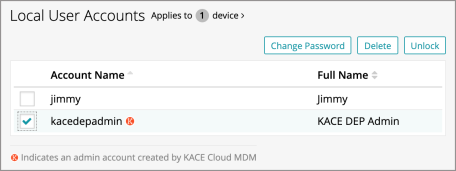
For full information on managed configuration, visit macOS app management in documentation.
Android Agent App
The KACE Cloud MDM Android Agent app now has a new Active Policy view that lets admins and end users see which restrictions are active on the device.
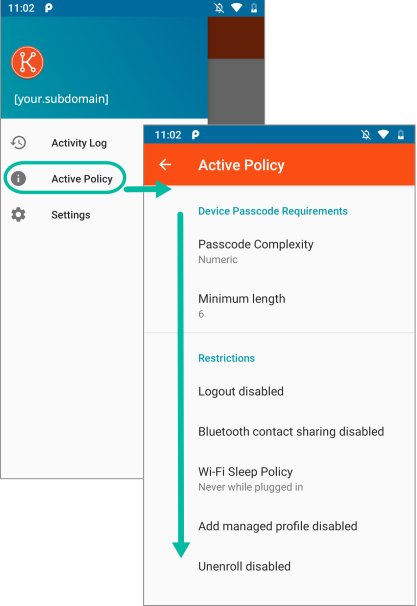
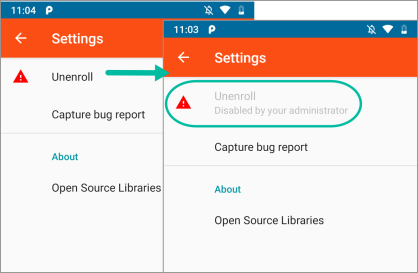
The Unenroll functionality has been moved under Settings. Also under Settings, on fully managed Android devices (7.0+), a bug report can be captured by the admin.
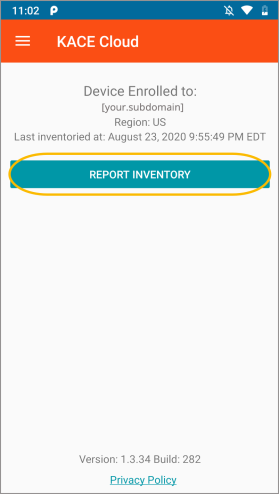
And from the main screen of the Agent app, an inventory report can be manually generated.
Managed Google Play Account Restriction
With this release, Android users will now be restricted to their Managed Google Play account by default. Apps previously installed by users under their personal account will not be removed from the device, but they will no longer be able to use their personal account in the managed version of the Play store. For devices with a work profile, the personal account outside of the work profile will be unaffected.
For full information, visit Android Fully Managed in documentation.
Usability Enhancements
Multi-Device Summary
The new multi-device summary provides data visualization for an entire device inventory, a single device, or a multi-device selection. If no devices have been selected, the data shown represents all devices in inventory. Summaries include device enrollment status, compliance, platforms, and labels.
As filters are updated, the visualization in the right panel is updated. Filter selections can be made in multiple panels as shown below. In the right panel changes can be updated in each section using the filter icons.
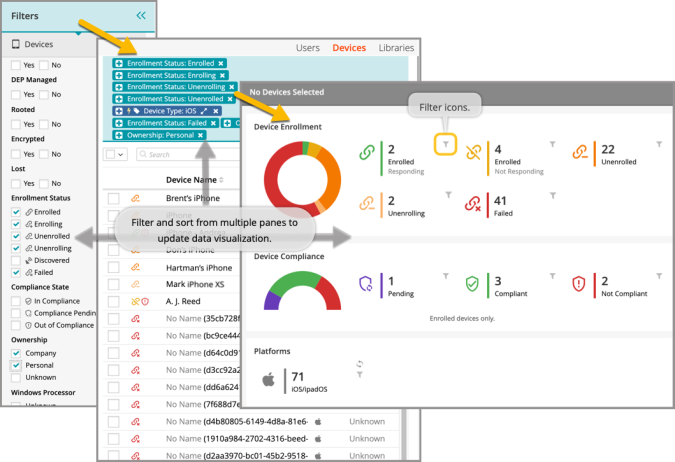
Here are some quick highlights for using the new data visualization features:
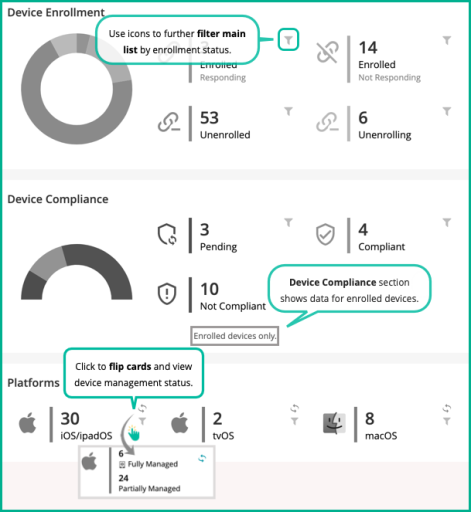
For additional information, visit Device Functionality - Inventory in documentation.
Resolved Issues
Bug fixes are included in the resolved issues list for two release periods and are then retired.
| Issue | Description | Status |
| ESMCL - 4387 Passcode Profile Not Recorded As Installed On macOS Device | Profile is shown as linked to the device after the command succeeds. |
FIXED |
| ESMCL - 4386 Google play not enrolled warning message appears when trying to add iOS web app | Verified: No error message appears and create webapp form is displayed. | FIXED |
| ESMCL - 4385 A supervised restriction being sent to a non-supervised iPad | Verified: Restriction set installs successfully and shows up in inventory. |
FIXED |
| ESMCL - 4364 UI: Location can be collected on demand even when the policy is turned off | Verified: Locate button is disabled or displays a message that location tracking is turned off for device. KACE Connect app does not report location when policy is set to "Off". | FIXED |
| ESMCL - 4363 UI: "Locate" button should not be enabled if no location policy is applied to device | Locate button disabled or displays warning that location tracking is not enabled for this device. |
FIXED |
| ESMCL - 4348 macOS VPP Installations Not Logging Success In Device History | Verified: VPP app installed, notification shows success, device history stays submitted. | FIXED |
| ESMCL - 4271 Android Wi-Fi autojoin not working on Android 9+. | Fixed in agent. Android Wi-Fi auto-join now working on Android 9+. |
FIXED |
| ESMCL - 4251 Cannot select 'Skip iMessage and FaceTime' in DEP Profile screen. | Can accurately select 'Skip iMessage and FaceTime' checkbox. | FIXED |
| ESMCL - 4236 Installing app directly on device from Playstore installs every app in the library. | Now installs only the apps selected on the PlayStore import screen. |
FIXED |
| ESMCL- 4171Outlook recently removed published app configuration, but setting the configuration continues to work. | Microsoft has fixed this on their end. |
FIXED |
| ESMCL- 4041 Incorrect device history when installing apps across different operating systems | When device history shows an "installing application" record for the app, no additional history is included. |
FIXED |
| ESMCL- 4031 App list when importing to device does not show app configs | The list of apps available for adding includes one item for every App + App Config combination. | FIXED |
Known Issues
Additional Resources
Getting Started with KACE Cloud MDM
© 2020 Quest Software Inc.
ALL RIGHTS RESERVED.
This guide contains proprietary information protected by copyright. The software described in this guide is furnished under a software license or nondisclosure agreement. This software may be used or copied only in accordance with the terms of the applicable agreement. No part of this guide may be reproduced or transmitted in any form or by any means, electronic or mechanical, including photocopying and recording for any purpose other than the purchaser’s personal use without the written permission of Quest Software Inc.
The information in this document is provided in connection with Quest Software products. No license, express or implied, by estoppel or otherwise, to any intellectual property right is granted by this document or in connection with the sale of Quest Software products. EXCEPT AS SET FORTH IN THE TERMS AND CONDITIONS AS SPECIFIED IN THE LICENSE AGREEMENT FOR THIS PRODUCT, QUEST SOFTWARE ASSUMES NO LIABILITY WHATSOEVER AND DISCLAIMS ANY EXPRESS, IMPLIED OR STATUTORY WARRANTY RELATING TO ITS PRODUCTS INCLUDING, BUT NOT LIMITED TO, THE IMPLIED WARRANTY OF MERCHANTABILITY, FITNESS FOR A PARTICULAR PURPOSE, OR NON-INFRINGEMENT. IN NO EVENT SHALL QUEST SOFTWARE BE LIABLE FOR ANY DIRECT, INDIRECT, CONSEQUENTIAL, PUNITIVE, SPECIAL OR INCIDENTAL DAMAGES (INCLUDING, WITHOUT LIMITATION, DAMAGES FOR LOSS OF PROFITS, BUSINESS INTERRUPTION OR LOSS OF INFORMATION) ARISING OUT OF THE USE OR INABILITY TO USE THIS DOCUMENT, EVEN IF QUEST SOFTWARE HAS BEEN ADVISED OF THE POSSIBILITY OF SUCH DAMAGES. Quest Software makes no representations or warranties with respect to the accuracy or completeness of the contents of this document and reserves the right to make changes to specifications and product descriptions at any time without notice. Quest Software does not make any commitment to update the information contained in this document.
If you have any questions regarding your potential use of this material, contact:
Quest Software Inc.
Attn: LEGAL Dept.
4 Polaris Way
Aliso Viejo, CA 92656
Refer to our website (www.quest.com) for regional and international office information.
Patents
Quest Software is proud of our advanced technology. Patents and pending patents may apply to this product. For the most current information about applicable patents for this product, please visit our website at www.quest.com/legal.
Trademarks
Quest and the Quest logo are trademarks and registered trademarks of Quest Software Inc. in the U.S.A. and other countries. For a complete list of Quest Software trademarks, please visit our website at www.quest.com/legal. All other trademarks, servicemarks, registered trademarks, and registered servicemarks are the property of their respective owners.